12:20
Video Tutorial: Dashboard
Watch this quick step-by-step video guide to fully understand how to use this feature efficiently.
1.9K Views
Partner Dashboard & Analytics
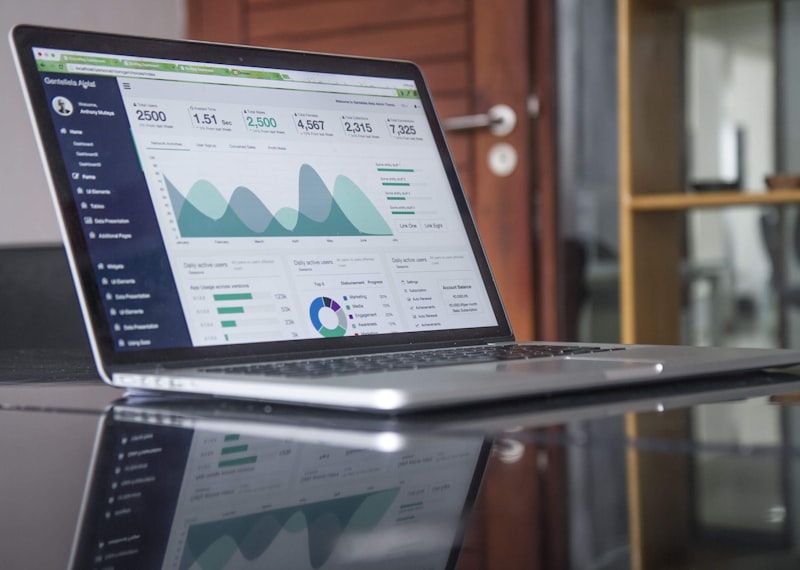
The Dashboard is your central command center, offering a real-time snapshot of your supermarket's health. Use it to instantly view total revenue, active daily orders, and customer acquisition trends. It also highlights urgent action items like pending orders and low-stock alerts, ensuring you never miss a beat.
1. High-Level Statistics
At the top of the dashboard, you will find key performance indicators (KPIs):
- Total Revenue: Total earnings (can be filtered by Today, This Week, This Month).
- Total Orders: Total number of orders placed by customers.
- Active Customers: The number of unique customers engaging with your store.
- Pending Orders Counter: A quick alert showing exactly how many orders are waiting to be processed right now.
2. Recent Activity Feed
This section gives you a chronological list of the most recent events in your store:
- New Orders: Instantly see when a new order arrives.
- Delivery Updates: See when an order's status changes to "Out for Delivery" or "Delivered".
- Low Stock Alerts: Get notified the moment a product variant falls below its configured low-stock threshold.
3. Reports & Analytics
Scroll down to access detailed visual charts. These are crucial for business decisions.
- Sales Trends: Line charts showing revenue day-by-day. Use this to identify your busiest days.
- Top Selling Products: A list or chart showing which products and variants are moving the fastest.
- Customer Acquisition: See how many new customers registered over a specific period.
Step-by-Step: Exporting Reports
- Navigate to the Reports tab (if enabled in your plan).
- Select the date range (e.g., Last 30 Days).
- Click the Export button (usually as CSV or Excel) to download the data for your accountant.